Friday, October 12, 2012

Changing windows start button text with your name or your text


Hai friends today i explain how to change text in windows start button
For this we have to follow two steps please go through it..
Step 1 – Modify Explorer.exe File
In order to make the changes, the file explorer.exe located at C:\Windows needs to be edited. Since explorer.exe is a binary file it requires a special editor. For purposes of this article I have used Resource Hacker. Resource HackerTM is a freeware utility to view, modify, rename, add, delete and extract resources in 32bit Windows executables and resource files (*.res). It incorporates an internal resource script compiler and decompiler and works on Microsoft Windows 95/98/ME, Windows NT, Windows 2000 and Windows XP operating systems.
get this software from this link copy the link and paste in browser and download this
http://delphi.icm.edu.pl/ftp/tools/ResHack.zip
The first step is to make a backup copy of the file explorer.exe located at C:\Windows\explorer. Place it in a folder somewhere on your hard drive where it will be safe. Start Resource Hacker and open explorer.exe located at C:\Windows\explorer.exe.
The category we are going to be using is “String Table”. Expand it by clicking the plus sign then navigate down to and expand string 37 followed by highlighting 1033. If you are using the Classic Layout rather than the XP Layout, use number 38. The right hand pane will display the stringtable. We’re going to modify item 578, currently showing the word “start” just as it displays on the current Start button.
There is no magic here. Just double click on the word “start” so that it’s highlighted, making sure the quotation marks are not part of the highlight. They need to remain in place, surrounding the new text that you’ll type. Go ahead and type your new entry. In my case I used Click Me!
You’ll notice that after the new text string has been entered the Compile Script button that was grayed out is now active. I won’t get into what’s involved in compiling a script, but suffice it to say it’s going to make this exercise worthwhile. Click Compile Script and then save the altered file using the Save As command on the File Menu. Do not use the Save command – Make sure to use the Save As command and choose a name for the file. Save the newly named file to C:\Windows.
Step 2 – Modify the Registry
!!!make a backup of your registry before making changes!!!
Now that the modified explorer.exe has been created it’s necessary to modify the registry so the file will be recognized when the user logs on to the system. If you don’t know how to access the registry I’m not sure this article is for you, but just in case it’s a temporary memory lapse, go to Start (soon to be something else) Run and type regedit in the Open field. Navigate to:
HKEY_LOCAL_MACHINE\ SOFTWARE\ Microsoft\ Windows NT\ CurrentVersion\ Winlogon
In the right pane, double click the “Shell” entry to open the Edit String dialog box. In Value data: line, enter the name that was used to save the modified explorer.exe file. Click OK.
Close Registry Editor and either log off the system and log back in, or reboot the entire system if that’s your preference. If all went as planned you should see your new Start button with the revised text.

Sunday, October 7, 2012

Retrieving mysql data into php web page


Hai friends today i am disusing about retrieving MySQL data into php web form for this first we have to follow the below steps.1. First of all open phpmyadmin and then create a new database as student then create a new table.
Creating table iscompletelydepends on you
but i am discussing about a table that contains student’s information.


After open this page select the database thats shows leftside of the above figure.then click on SQL query shown below.


then copy paste the following queries and then press go button then the following queries get executed
create table student (rollno int primary key,sname varchar(30),class varchar(30),averageMarks int);
insert into student (rollno,sname,class,averageMarks) values(1,”poorna”,”MCA”,75);
insert into student (rollno,sname,class,averageMarks) values(2,”mohan”,”MCA”,78);
insert into student (rollno,sname,class,averageMarks) values(3,”Ramakrishna”,”MCA”,76);
insert into student (rollno,sname,class,averageMarks) values(4,”kalyan”,”MCA”,89);
insert into student (rollno,sname,class,averageMarks) values(5,”naidu”,”MCA”,79);
insert into student (rollno,sname,class,averageMarks) values(6,”praveen”,”MCA”,74);
after you press go button then student table has been created and values also been inserted in it
make sure that the table name student is not present in your database if present change the table name and try it
if you have a predefined database with table already then skip this step and proceed further.
2.Now create a php page and add the following code that show below
<?php>
/*first of all connect to database through php by using following code here root means user name it will changes if you already have a different username or by default MySQL user is root and after that we have to mention password by default there is no password for MySQL if you create a password then please mention here after that select your database here i am using my database as students yours should changes*/

$db1=mysql_connect("localhost", "root", "") or die(mysql_error()); 
$selectdb=mysql_select_db("student", $db1) or die(mysql_error());

/*now retrieving data from database*/

echo "<table border=1 cellspacing=0 align=center>";
echo "<tr><td>RollNumber</td><td>Student Name</td><td>Student Class</td><td>Average Marks</td></tr>";
$qr1=mysql_query("select * from student");
while($mr1=mysql_fetch_array($qr1))
{
$rollnumber=$mr1['rollno'];     //here we mention database element name in $mr1
$name=$mr1['sname'];           //$name is a variable it should be our choice to choose the name
$class=$mr1['class'];
$averagemarks=$mr1['averageMarks'];
echo '<tr><td>'.$rollnumber.'</td><td>'.$name.'</td><td>'.$class.'</td><td>'.$averagemarks.'</td></tr>';
}
echo"</table>";
?>
This is the php code to retrieve data from MySQL
3.now run the php page from localhost the the data you entered in the mysql page will be available in your webpage

Changing background of your facebook login page


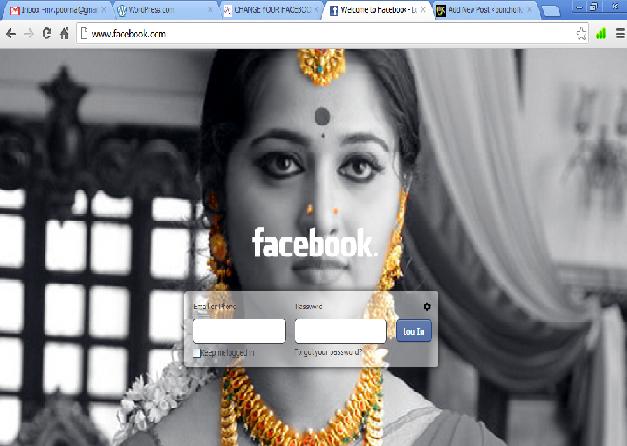
Hi friends today i will explain how to change your Facebook login page . By using rotten login page change your login page with your own image and you can also customize this login page with your own colors as shown below.
here i use my own wallpaper for this you have to download extensions on google chrome.
to install the extensions please click on below link
and then click on added to chrome button which is placed top right corner
After clicking this button you will ask an conformation dialogue box that weather to add to chrome extensions are not press on add button  in that dialogue box.
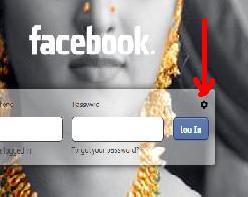
Then customize settings for login page will appears then you skip that step and open Facebook page by clicking www.facebook.com then the login page will be changed if you want to add different wallpaper to that page click on settings button which is placed above the login button.
After clicking on this settings button that shows above a new window appears there it asks to upload a image then after successfully upload your login page background image will be  changed.
By this process you can change your background image of your Facebook login page .
Note: This will work in only Google chrome because we adding chrome extensions for other browser the process will be changes
If you have any questions or concerns please leave us a comment and also share and like this if you really like this post feel free to ask any question regarding my posts.

Sticky Note for windows xp without any third part software


Hai friends today i will explain You how to use notepad as sticky note in windows xp or before versions.
Have a look at a few small, handy things which aren’t part of windows. The first one will be Sticky Notes-the virtual equivalent of writing down tasks and reminders on paper and sticking somewhere around you. If you need this with in windows XP, you have to download and install freeware. But, you can use sticky notes in windows XP without installing a third party tool.
It will take only five simple steps. Let’s do this in any computer within a few minutes. I thing this sticky notes will be an unavoidable tool in your office computers.
1. Create a file type:
Open ‘my computer’. Click on ‘tools’ in the menu bar and select ‘Folder Options’ under the ‘file types’tab click on the ‘new’ button to crate a new file extension. Type in ‘stk’ (short for sticky notes, of course you can choose your own extension for this i just choose as stk yours may be different) in the ‘create new extension window’ and hit enter.
2. Assign an action and an application:
In the folder options menu click on stk file and hit advanced button. A new window-Edit File Type-will is opened. Click the ’ new’ button to assign and action for our purpose. Under ‘action’ type ‘open’ and under‘application user to perform action’ type  ‘notepad.exe’. Close the window.
3. Select an icon:
Click ‘change icon’ button in the already opened ‘Edit file window’. Select an icon and type in ‘Remindme’(this name should be depends on yours choice) just before ‘change icon’ button. Click OK. Close all windows opened.
if you want to choose a sticky icon but it is not present in that list of icons so for that download the icon which will have a extension as stickyNote.ioc this .ioc is the extension for icons so search in Google and download the icon so that it appears as original sticky that present in windows 7
4. Editing the registry:
Open registry editor by navigating Start–>Run–>Type in ‘regedit’-Click ‘OK’. expand the HKEY_CLASSES_ROOT and right click on ‘stk’ (which will be present as .stk in that list)and select ‘new-key’ and type in ‘ShellNew’. By selecting ‘ShellNew’ right click ‘new-string value’ and type in ‘NullFile’. Exit the registry editor.
5. Use this tool:
Right click on free space anywhere in explorer or on the desktop will show up ‘Remind Me’ under new. Select this option. Type in anything you want remind and stick it on anywhere in the free space. And here, the ‘sticky notes’. We have actually created a notepad file. The reminder you typed in is actually a file name.

How To Open Office 2007 Documents In Older Versions Of Office


With Microsoft Office 2007, Microsoft introduced a new set of file formats: .docx, .xlsx, and .pptx, all not compatible with previous Microsoft Office versions. So if somebody sends you a Word 2007 document and you use Word XP, an error message awaits you. Luckily, the fix is easy: Use the Office plugin named Microsoft Office Compatibility Pack for Word, Excel, and PowerPoint 2007 File Formats.
MOCPWEP2007FF enables you to open/edit/save Office 2007 documents in Office 2000, 2003, or XP without any work on your part. Just make sure that your office has the latest Service Pack installed - either SP3 for Office 2000 and XP, or SP1 for Office 2003.
If you don’t want to go all that difficulty and you just need to convert just a single .docx file, point your browser to docx-converter.com. Upload your file, select your preferred format (.doc is just one choice), and enter your email address. In a moment, you should get a note containing a link to download the converted file. It’s a free service.

A Glance at New Microsoft Outlook Features/Specifications

Its been more than two weeks I started using Outlook.I didn't integrate many service with this but found some interesting features in this new Microsoft Outlook Interface.The best thing I liked about Outlook is that its Faster,Smooth and Secure.
Outlook

What is Outlook?

For those who didn't know Outlook.com is Microsoft new Online Email Service.Microsoft has renamed its existing mailing service Hotmail as Outlook.

Why Microsoft moved Hotmail To Outlook?

Hotmail was the worlds largest online mail service as of June,but according to surveys it was found that most of them are moving to Google Gmail ,the fastest growing rival.It looks like Microsoft has taken this step to protect their customers by improving their service.

Few Improved Features of Outlook:

Sign-In With Temporary Password:

Outlook+Signing+in+with+Temporary+Password
This is one of the very new feature that I have noticed in the new outlook.If you have linked your mobile with Hotmail/Outlook then you can directly able to login to your outlook account without actually using your original password.

Get Disposable Email Addresses inside Outlook:

Hotmail and now Outlook lets you to create temporary email addresses.If you want to share your email address with a less trustable website then you can easily create and share a disposable email address.
To create an email alias, open Outlook Mail Settings and choose Create an Alias under Managing your Account.

Send Large Attachments(Even More Than 25MB):

Gmail lets you to send only files upto 25MB.Most of you get into trouble while sending files larger than 25MB but now its became more easier with new Outlook.If you attach any file with more than 25MB it will be directly moved to your Skydrive account.

Easy Social Network Integration:

Gmail offers you to integrate Google Plus with your account by default.Not all are Google+ as of now.Outlook offers you easy integration of Facebook,Twitter and Linkedin which is widely used by most of your friends and family.

Block Emails From Particular Address or Domain:

We get many spammy emails daily either they are unwanted emails or forwarded emails.Such kind of emails don't deserve to stay in our inbox.You can create spam filters to avoid such kind of mails.

Conclusion:

Though microsoft says that Outlook is still in its preview version it has many features which most of the  email service today lack.For more information you can check well researched article written by Amit Agarwal.
We Will Send Some More Information Related To "A Glance at New Microsoft Outlook Features/Specifications"

Download Top 20 Themes for Windows 7