Saturday, May 12, 2012

Use Keyboard as a Mouse


Yes you can use ur Keyboard as a Mouse when ur mouse is down or in emergency.
Press Shift+Alt+Numlock from ur Keyboard
Press Yes on the window appearing on the screen
Now you will see a Mouse icon in Task Bar
Now you can use your keyboard as mouse.
Navigation Keys (Num Lock Keys)
8 – Up
2 – Down
4 – Left
6 – Right
7,9,3,1 – Directional Navigation
Note: You Must Turn On Num Lock

Monday, May 7, 2012

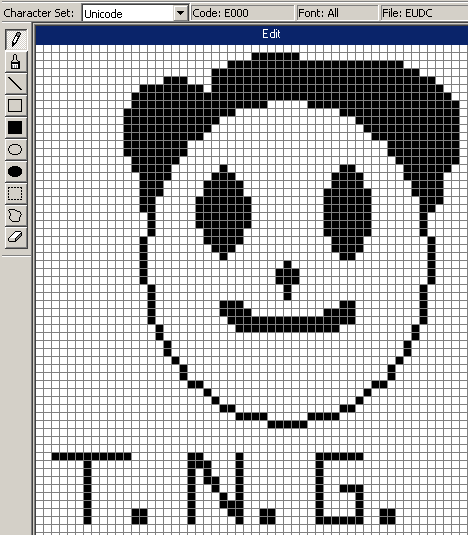
How To Create Your Own Font

Hi friends. In windows operating system, there is a hidden utility which lets the user to create custom fonts. So if you want to know how to create custom fonts, then read this post carefully.
1. Go to Start Menu and open RUN. Or press win key+R.
2. Type eudcedit and press enter.
create custom font
3. A new window will appear to select code. Select any code you like. I have selected 1st, i.e. E000*0
create custom font
4. Now your font editor will open. You can draw your character as you draw in mspaint.
create custom font
5. After finishing the custom character/symbol, go to Edit and click Save Character.
create custom font
6. Now go to File and click Font Links.
create custom font
7. Select from Link With All Fonts OR Link With Selected Fonts. I am selecting Link With All Fonts.
create custom font
8. Now your custom font symbol is saved in the pc. To use this custom symbol, open RUN as told above.
9. Type charmap and press enter. This will open character map.
10. Now search for All Fonts (Private Characters).
create custom font
11. You will see your custom symbol there. Just click on that symbol, click Select and click Copy.
create custom font
12. Now paste in your text editor. You will see your new custom symbol.
create custom font

Enjoy...!!

Angry Birds Space Theme For Windows 7 And Windows 8


angry birds space theme
I have provided Angry Birds Space Full Versions For Different Platforms in my previous posts. This game is the most popular game on the net. So, I hope you also enjoyed the game. If you want to give your whole pc a look ofAngry Birds Space, then I have Angry Birds Space Theme for windows 7 and windows 8. After installing it, you will be able to give your pc a cool look of Angry Birds Space. So, download it now and make your pc angry... And don't forget to share with your friends also.
Enjoy.

Win7 Trick – Expanded ‘Send To’ Menu & Open Cmd Prompt in any Folder


Press “˜Shift’ when right-clicking on a folder to get “Open Command Window Here” option in the context menu.
Press Shift when right-clicking on a folder to get an expanded Send To menu.

Send colorful text in facebook chat


This trick is solely based on the fact that when profile ID’s are inserted in between square brackets, it automatically transforms into the profile picture. These ID’s are specially created for this purpose.
You can also send messages in colourful text but these codes will not work in Status update. This will also not work if the other person is using chat from his mobile.
Here is the list of codes with their alphabets.
[[107015582669715]] = A
[[116067591741123]] = B
[[115602405121532]] = C
[[112542438763744]] = D
[[115430438474268]] = E
[[109225112442557]] = F
[[111532845537326]] = G
[[111356865552629]] = H
[[109294689102123]] = I
[[126362660720793]] = J
[[116651741681944]] = K
[[115807951764667]] = L
[[106596672714242]] = M
[[108634132504932]] = N
[[116564658357124]] = O
[[111669128857397]] = P
[[107061805996548]] = Q
[[106699962703083]] = R
[[115927268419031]] = S
[[112669162092780]] = T
[[108983579135532]] = U
[[107023745999320]] = V
[[106678406038354]] = W
[[116740548336581]] = X
[[112416755444217]] = Y
[[165724910215]] = Z
How to Use it:
To create a word of colourful text copy the codes of alphabets and make sure to insert single space between the each alphabetic code. Here is the code for AVINASH.
AVINASH: [[107015582669715]] [[107023745999320]] [[109294689102123]] [[108634132504932]] [[107015582669715]] [[115927268419031]] [[111356865552629]]

Your Own Folder Locker (Post shared by Prudvy Kumar)


Step 1:-
Open the Notepad.exe
Step 2:-
Copy the following code into the notepad
Quote: cls@ECHO OFF
title Folder Private
if EXIST “Control Panel.{21EC2020-3AEA-1069-A2DD-08002B30309D}” goto UNLOCK
if NOT EXIST Private goto MDENTER PASSWORD TO OPEN
:CONFIRM
echo ———————————————————–
echo ==================================
echo ———————————————————–
echo Are you sure you want to lock the folder(Y/N)
echo Press (Y) for Yes and Press (N) for No.
echo ———————————————————–
set/p “cho=>”
if %cho%==Y goto LOCK
if %cho%==y goto LOCK
if %cho%==n goto END
if %cho%==N goto END
echo Invalid choice.
goto CONFIRM
:LOCK
ren Private “Control Panel.{21EC2020-3AEA-1069-A2DD-08002B30309D}”
attrib +h +s “Control Panel.{21EC2020-3AEA-1069-A2DD-08002B30309D}”
echo Folder locked
goto End
:UNLOCK
echo ———————————————————–
echo ====================================
echo ———————————————————–
echo Enter password to unlock folder
set/p “pass=>”
if NOT %pass%==YOUR PASSWORD goto FAIL
attrib -h -s “Control Panel.{21EC2020-3AEA-1069-A2DD-08002B30309D}”
ren “Control Panel.{21EC2020-3AEA-1069-A2DD-08002B30309D}” Private
echo Folder Unlocked successfully
goto End
:FAIL
echo Invalid password
goto end
:MDENTER PASSWORD TO OPEN
md Private
echo Private created successfully
goto End
:End
Step 3:-
Now change the password in the if NOT %pass%==YOUR PASSWORD goto FAIL
line replace text of YourPassword with your password for the folder lock.
Step 4:-
Now save this file as locker.bat and you are done.
Step 5:-
Now Open the Locker.bat
file and enter your password to open a private folder of yours.
Step 6:-
Now copy paste the files which you want to hide and make it secure in the private folder.
Step 7:-
Now again open the Locker.bat file and press’Y'to lock the private folder with your password.
Step 8:-
Now to again open the secured files open the locker.bat file Enter your password and your files are there for you.

Send e-mail in future (E-mail scheduling in Gmail)


1. First download this Application Boomerang.
This Application is available for different browsers(Google Chrome, Mozilla Forefox,Safari etc).
2. Download this Application and install it for your respective browser.
The application will welcome you when you restart your browser and open gmail account.
You can take a tour or simply click on SKIP
3. Now log in to your Gmail and go to Compose Mail.
You will find an option like this.
4. Now Click the button Send Later and there you can Schedule Time at what time you want to send mail.Then click confirm.
5. If you want to reschedule or make any changes the you can go to Boomerang and go to Manage Scheduled Mails.
6. Your are done…Enjoyyy.